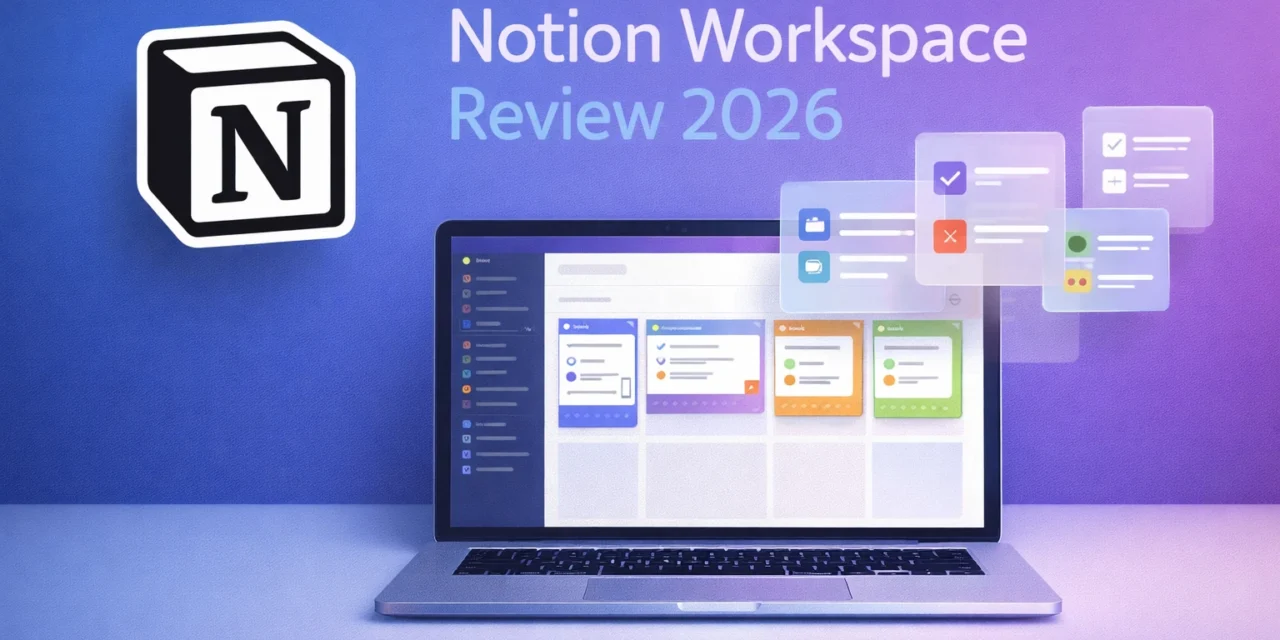
ix months ago, I used Evernote for notes, Trello for tasks, Google Docs for writing, and Airtable for databases. My digital workspace was scattered across eight different apps. Then I tried Notion, and everything changed.
This isn’t another “Notion is perfect” review. After 180 days of daily use, I’ll show you what Notion actually delivers, where it frustrates me, and whether it’s worth migrating your entire workflow.
What Is Notion? The Quick Overview
Notion is an all-in-one workspace that combines note-taking (like Evernote), wikis (like Confluence), databases (like Airtable), task management (like Trello), and documents (like Google Docs). Everything lives in a unified interface with interconnected pages, databases, and real-time collaboration.
The promise: One app to replace them all. The reality: It comes close, with caveats.
Getting Started with Notion
Access Notion through the web app at notion.so (works in any browser), desktop apps for Mac, Windows, and Linux, or mobile apps for iPhone and Android.
Setup takes 5 minutes: Visit notion.so, sign up with email or Google, choose a template or start blank, and create your first page. No credit card required for the free plan.
First impressions: The blank page is intimidating. Unlike Google Docs which just wants you to start typing, Notion offers 50+ block types (headings, to-do lists, databases, calendars). The learning curve is real.
Features That Make Notion Special
Blocks – The Building System
Everything in Notion is a “block” – text, images, to-do items, databases, even embedded content. Type “/” to see all block options. “/heading” creates headers, “/todo” creates checkboxes, “/database” creates tables, kanban boards, or calendars.
Writing this review, I created text blocks for paragraphs, a database to track features I’m testing, a to-do list for screenshots needed, and embedded links to reference material. It’s like having Lego blocks for productivity – infinitely flexible.
Databases – The Game-Changer
This is where Notion destroys competitors. Databases aren’t just tables – they’re multi-view systems. One database can display as a table (spreadsheet view), board (Kanban cards), calendar (date-based), list (simple rows), gallery (image grid), or timeline (Gantt chart).
Real example: My content calendar database shows table view for editing details, calendar view for publish dates, and board view for workflow stages (Draft → Review → Published). Same data, three useful perspectives. This replaced Trello, Airtable, and Google Sheets for me.
Templates – Instant Productivity
Notion offers 10,000+ templates for meeting notes, project trackers, reading lists, habit trackers, and company wikis. I duplicated a “Content Calendar” template and customized it in 10 minutes. Would’ve taken hours building from scratch.
Real-Time Collaboration
Invite teammates to any page. Everyone sees changes instantly, like Google Docs. Comments on specific blocks, @mentions to notify people, and page permissions (view-only, edit, full access) all work smoothly.
What’s clunky: No built-in video calls (unlike Google Workspace), and revision history exists but isn’t as robust as Google Docs. For teams already using Slack or Microsoft Teams for communication, Notion integrates well as the knowledge base. Check out more collaboration tools on Apps400’s web apps section.
Notion AI (Premium Feature)
Added in 2023, Notion AI assists with writing and editing, summarizing long documents, generating action items from meeting notes, and brainstorming ideas.
I use it to summarize research articles, generate first drafts of outlines, and clean up messy notes into structured content. Cost: $10/month on top of your existing plan. Worth it if you write extensively, not necessary for casual note-takers.
Pricing: Free vs Paid Plans
Free Plan: Unlimited pages and blocks, up to 10 guests, 7-day page history, 5MB file uploads – perfect for individuals.
Plus Plan ($10/month): Unlimited file uploads, 30-day page history, unlimited guests – good for small teams.
Business Plan ($18/month): 90-day page history, advanced permissions, bulk PDF export – for growing companies.
Enterprise (Custom pricing): Dedicated support, advanced security, SAML SSO – for large organizations.
My setup: I use Free for personal projects, Plus for client work (worth $10 for unlimited file uploads alone).
What Notion Does Poorly
Problem #1: Offline Mode is Limited
Unlike Evernote, Notion struggles without internet. Pages load from cache but editing is buggy. On a recent flight, I couldn’t reliably work. Frustrating for travel-heavy users.
Problem #2: Mobile App Feels Slow
The iOS/Android apps work but lag compared to native apps like Apple Notes. Opening a database with 500 entries takes 3-4 seconds on mobile. Desktop is instant.
Problem #3: Learning Curve is Steep
My wife tried Notion and quit after 20 minutes. “Too complicated,” she said. She’s right. Notion rewards power users but intimidates casual users. If you just want simple notes, Apple Notes or Google Keep are better.
Problem #4: No Native Email Integration
Unlike Microsoft OneNote (integrates with Outlook), Notion doesn’t capture emails directly. Workaround: Forward emails to your Notion email address (each workspace gets one). It works but feels clunky.
Notion vs Competitors
Notion vs Evernote: Evernote wins on better mobile app, faster search, simpler interface. Notion wins on databases, collaboration, flexibility.
Notion vs Google Docs: Google wins on real-time sync, better for simultaneous editing. Notion wins on organizational structure, databases, templates.
Notion vs Confluence: Confluence wins on enterprise features, Jira integration. Notion wins on pricing (Confluence is expensive), design, ease of use.
My verdict: Notion is best for people who want one flexible tool. Specialists who need best-in-class (writers → Google Docs, developers → Confluence) might stick with dedicated apps.
My 6-Month Results
Apps I replaced with Notion: Evernote (notes), Trello (task boards), Airtable (databases), Google Docs (some documents), OneNote (knowledge base).
Apps I still use: Google Docs (for collaborative writing), Slack (for team chat), Gmail (Notion isn’t an email client).
Time saved: ~5 hours monthly (no more switching between apps, searching multiple places). Cost: $0 (using free plan).
Should You Use Notion?
Use Notion if you want one app for notes, tasks, and databases; you’re comfortable with a learning curve; you work on projects requiring organization; you collaborate with small teams; or you love customization.
Skip Notion if you want simple note-taking (use Apple Notes, Google Keep); you work offline frequently; you need enterprise-level security immediately; or you want the fastest mobile experience.
My Rating: 4.3/5 Stars
Pros: Incredibly flexible, replaces multiple apps, beautiful interface, excellent templates, generous free plan.
Cons: Steep learning curve, sluggish mobile experience, limited offline functionality, can feel overwhelming initially.
Bottom Line: Notion delivers on its promise for power users willing to invest setup time. It’s not for everyone, but for people managing complex projects, knowledge bases, or team workflows, it’s the best all-in-one solution available in 2026.
Start with the free plan. Explore templates. Give it two weeks. If it clicks, you’ll wonder how you worked without it.