I’ve used Google Maps for so long that I forgot what life was like without it. Then my phone broke last month, and I borrowed my dad’s old phone with only Apple Maps. Those three days reminded me why Google Maps isn’t just good—it’s essential.
This review comes from someone who’s used Google Maps for navigation, travel planning, local discovery, and even finding bathrooms in emergencies (yes, really). Let me show you features you’re probably not using but absolutely should be.
What Is Google Maps?
Google Maps is the world’s most popular navigation app with over 1 billion monthly active users. It’s free, works globally, and combines:
- Turn-by-turn GPS navigation
- Real-time traffic updates
- Public transit directions
- Walking/biking routes
- Local business discovery
- Street View exploration
- Indoor maps for airports/malls
It’s evolved from “just a GPS app” to an everything-local-information platform.
Download & Setup (2 Minutes)
Getting Google Maps:
For iPhone/iPad:
- App Store → Search “Google Maps“
- Download “Google Maps” by Google LLC
- Link: Google Maps on App Store
- Size: ~223 MB
For Android:
- Usually pre-installed on Android phones
- If not: Google Play Store → Search “Google Maps“
- Download by Google LLC
- Link: Google Maps on Google Play
First Launch Setup:
- Sign in with Google Account (optional but recommended for saved places)
- Enable Location Services (essential—Maps can’t work without knowing where you are)
- Allow Notifications (for traffic alerts, arrival times)
Privacy note: Google Maps tracks your location history. To disable: Settings → Location History → Turn off. I keep it on because it creates a personal timeline of everywhere I’ve been (useful for tracking mileage, remembering place names).
Navigation: The Core Feature
Basic Navigation Setup:
- Open Google Maps
- Tap search bar → Type destination
- Tap “Directions” (blue button)
- Choose mode: Car, Transit, Walk, Bike, Ride-share, Flight
- Tap “Start”
What makes it brilliant:
Real-Time Traffic: The map shows:
- Green = smooth traffic
- Yellow/Orange = moderate traffic
- Red = heavy traffic
- Dark red = stop-and-go
Google reroutes automatically if faster alternatives appear.
Real example: Driving to the airport last Tuesday, my usual 35-minute route showed red (accident). Google rerouted me through side streets, arrival time: 38 minutes. I arrived in 36 minutes. Without Maps, I’d have sat in 50+ minutes of traffic.
Multiple Route Options:
Google shows 2-3 route alternatives with:
- Estimated time
- Distance
- Tolls (if applicable)
- Traffic conditions
I always check alternatives before starting. Sometimes the “longer” route by distance is faster due to traffic.
Voice Guidance: Turn-by-turn instructions with natural voice:
- “In 500 feet, turn right onto Main Street”
- “Continue straight for 2 miles”
- “Your destination is on the right”
The voice even warns you: “Traffic ahead. Your new arrival time is 3:45 PM.”
Features Most People Don’t Know About
- Offline Maps (Lifesaver for Travel)
Download maps for entire cities/regions to use without internet.
How to download:
- Search for a location (e.g., “New York City”)
- Tap the location name at bottom
- Tap three dots (top right) → “Download offline map”
- Adjust area boundaries
- Tap “Download” (maps are 50-500 MB depending on area)
I downloaded Tokyo before my Japan trip. Used zero data for 5 days of navigation. Saved me $50 in international roaming fees.
- Live View (AR Walking Directions)
Point your phone camera at buildings, and Google Maps overlays giant arrows showing exactly where to walk.
When to use: Confusing intersections, city centers, immediately after exiting subway stations.
My experience: Used it in downtown San Francisco when GPS couldn’t determine which direction I was facing. Pointed camera at buildings, AR arrows appeared, walked confidently.
How to access: Start walking directions → Tap “Live View” button.
- Timeline (Your Personal Travel History)
Google saves everywhere you’ve been (if location history is on).
Uses I’ve discovered:
- Track business mileage for taxes (it logs every drive automatically)
- Remember restaurant names from last month
- Prove I was somewhere at specific time (weird but useful)
- Nostalgia trip through past vacations
Access: Tap profile icon → “Your timeline” → Choose date
- Search Along Route
Already navigating? Need gas, coffee, or a bathroom?
How:
- While navigating, tap the search bar
- Search “gas stations” or “coffee” or “restrooms”
- Maps shows options ALONG your route (not random nearby places)
- Tap one → “Add stop” → Resumes navigation after
This saved me when I desperately needed a bathroom during a 3-hour road trip. Found one 0.3 miles off my route, added as stop, arrived in 4 minutes.
- Share Live Location
Let others track your real-time location.
When I use this:
- Wife tracks my commute home (“pick up dinner when you’re 10 minutes away”)
- Parents tracking my road trips (safety)
- Friends meeting up (“I’m 5 minutes away”)
How:
- Tap profile picture → “Location sharing”
- Choose duration (1 hour, until end of day, indefinitely)
- Select contacts
- They get link showing your live location
- Saved Lists (Organize Discoveries)
Create lists of places: “Restaurants to Try,” “Vacation Ideas,” “Favorite Cafes.”
My lists:
- Coffee Shops (47 saved locations)
- Hiking Trails (23 locations)
- Date Night Restaurants (19 spots)
Bonus: Lists are shareable. I sent my “Best Tacos in LA” list to my friend visiting from NYC. Check out more organizational apps on Apps400’s productivity apps section.
Public Transit Directions (Underrated Feature)
Google Maps excels at public transportation:
What it shows:
- Bus/train routes and schedules
- Walk time to stations
- Real-time delays/arrivals
- Fare estimates
- Accessibility info (wheelchair access)
Example: “Home to downtown San Francisco”
- Walk 4 min to bus stop
- Take Bus 14 (arrives in 6 minutes)
- Ride 18 minutes
- Transfer to BART at Powell Station
- Ride 8 minutes to Montgomery
- Walk 3 minutes to destination
- Total time: 39 minutes
- Cost: $5.50
I’ve used this in New York, London, Tokyo, and San Francisco. It works flawlessly everywhere.
Business Discovery & Reviews
Google Maps is my Yelp replacement.
For any business, you see:
- Star rating (out of 5)
- Number of reviews (credibility indicator)
- Price level (, $ , $$$, $$$$)
- Hours (including “busy times” graph showing when it’s crowded)
- Photos from customers
- Menu (for restaurants)
- “Popular times” showing when place is busiest
My workflow for finding restaurants:
- Search “Italian restaurant near me”
- Filter by “Open now” and “Rating: 4.0+”
- Check “Popular times” to avoid crowds
- Read 2-3 recent reviews
- Make decision in 2 minutes
What Google Maps Does Poorly
Problem #1: Drains Battery Fast
GPS navigation + screen-on drains battery quickly. My iPhone loses 40-50% battery on a 2-hour navigation session.
Solution: Use a car charger, always. I keep one in my car permanently.
Problem #2: Occasional Wrong Directions
Maybe 1 in 50 times, Google directs me to the back of a building, a service entrance, or the wrong side of a complex.
Example: Navigating to a hotel, Google took me to the loading dock. The actual entrance was around the corner.
Workaround: Always check the destination on satellite view before leaving. Look for parking, main entrances.
Problem #3: Limited Indoor Navigation
While Google has indoor maps for airports and malls, the step-by-step navigation inside buildings is weak.
Alternative: Many airports now have their own apps with better indoor navigation.
Problem #4: Privacy Concerns
Google tracks everywhere you go. This data improves services but feels invasive to privacy-conscious users.
If this bothers you: Turn off Location History in settings, but you’ll lose personalized recommendations and timeline features.
Google Maps vs Apple Maps
I’ve used both extensively. Here’s the breakdown:
Google Maps Wins:
- More accurate traffic data
- Better business information and reviews
- Works on ALL platforms (Android, iOS, web)
- Superior public transit integration
- Street View
- Offline maps more flexible
Apple Maps Wins:
- Cleaner, prettier interface
- Better CarPlay integration (subjective)
- “Look Around” is smoother than Street View
- Privacy-focused (doesn’t track as much)
My verdict: Use Google Maps. It’s more accurate, more feature-rich, and works everywhere. Apple Maps has improved dramatically but still lags in traffic accuracy and business info.
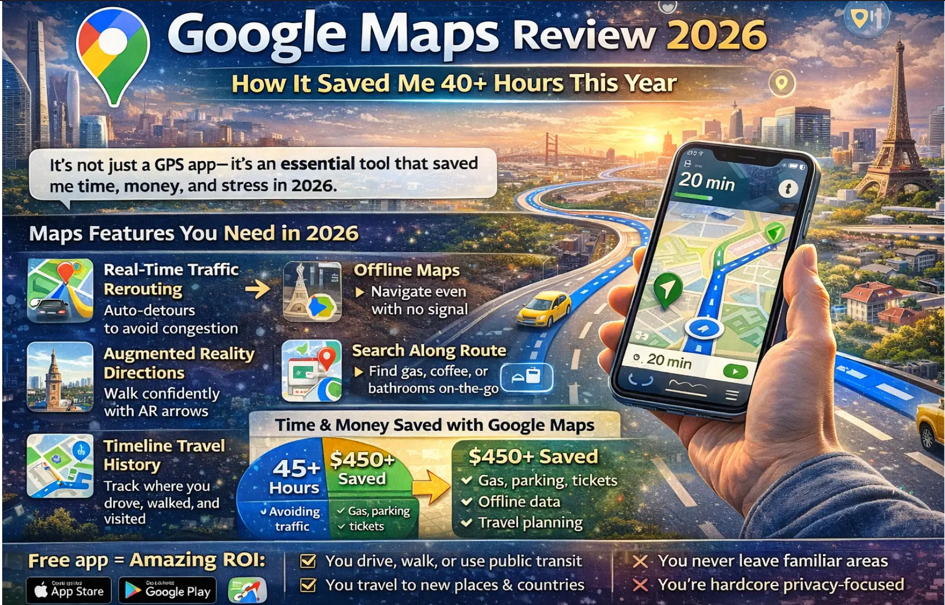
Time & Money Saved: My Calculation
Over the past year, Google Maps saved me:
Time saved:
- Avoiding traffic: ~30 hours
- Efficient routing: ~10 hours
- Finding places quickly: ~5 hours
- Total: 45 hours
Money saved:
- Gas from efficient routing: ~$200
- Parking (finding cheaper lots): ~$150
- Avoiding speeding tickets (warns about speed cameras): Priceless
- International roaming (offline maps): ~$100
- Total: $450+
Value of 45 hours at even $20/hour = $900 Total value: ~$1,350 annually
For a free app, that’s remarkable ROI.
Should You Use Google Maps?
Use Google Maps if:
✅ You drive, walk, or use public transit anywhere
✅ You travel to new cities/countries
✅ You want accurate real-time traffic
✅ You discover local businesses frequently
✅ You’re comfortable with location tracking
Stick with Apple Maps if:
❌ You’re hardcore privacy-focused
❌ You never leave familiar areas
❌ You only use Apple devices and want tight integration
My Rating: 4.8/5 Stars
Pros:
- Most accurate traffic data available
- Works globally, in nearly every country
- Offline maps for travel
- Comprehensive business information
- Free with no ads
- Constantly improving with updates
Cons:
- Battery drain during navigation
- Tracks your location extensively
- Occasional wrong building entrances
- Indoor navigation needs improvement
Bottom Line
Google Maps is the single most useful app on my phone. It’s saved me hundreds of hours and dollars over the years, prevented me from getting lost in foreign countries, and helped me discover amazing local businesses.
It’s free, works everywhere, and solves a fundamental daily problem: getting from point A to point B efficiently. If you’re not using Google Maps, you’re wasting time and money.