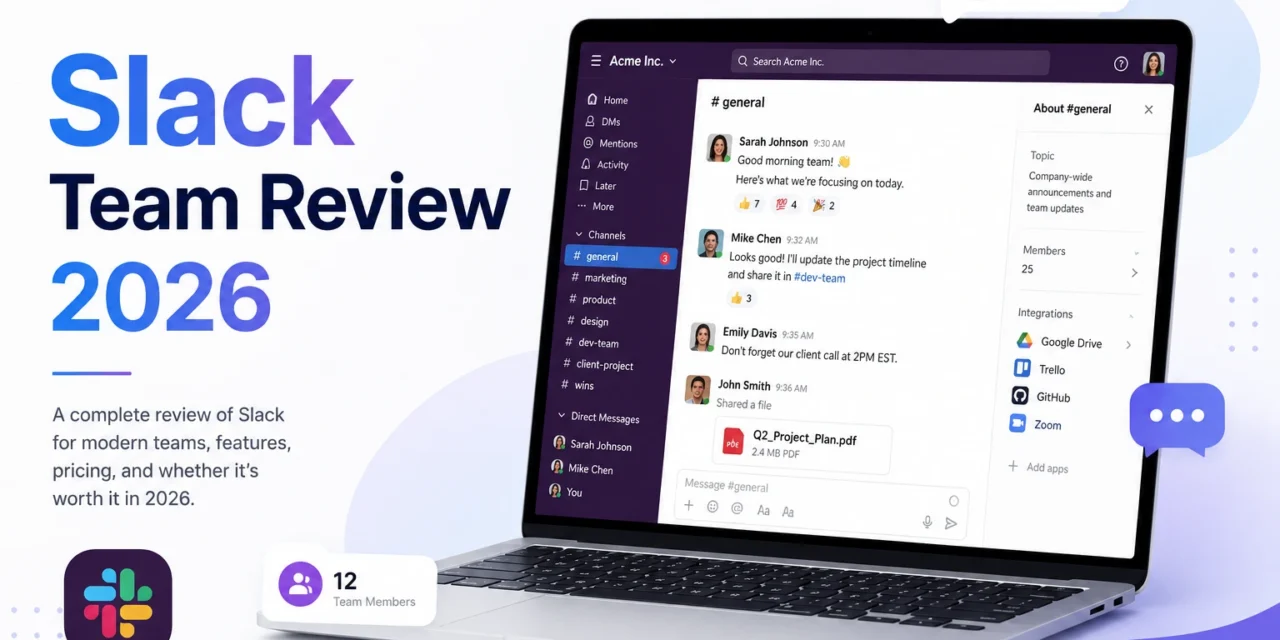
Eight months ago, our 12-person team communicated through email chains, random text messages, and occasional Zoom calls. Information disappeared into inboxes, decisions got lost in threads, and onboarding new people meant forwarding 50+ emails. Then we migrated to Slack, and workplace communication finally makes sense.
This review comes from a team that sends 500+ Slack messages daily, uses 15 channels, and integrated 8 tools. Here’s whether Slack lives up to the hype.
What Is Slack?
Slack is a team communication platform that replaces email with organized channels, direct messages, file sharing, and 2,600+ app integrations. Think of it as group texting for businesses, but infinitely more organized.
Key features: Channels for topics, threads for focused conversations, direct messages, file sharing, voice/video calls, searchable message history, and app integrations (Google Drive, Trello, GitHub, etc.).
Access via slack.com (web), desktop apps (Mac, Windows, Linux), or mobile apps (iPhone, Android).
Pricing: Free vs Paid Plans
Slack Free:
- 90-day message history
- 1:1 voice/video calls (no group calls)
- 10 app integrations
- 5GB team file storage
- Good for small teams testing Slack
Slack Pro ($8.75/month per user):
- Unlimited message history
- Group voice/video calls (up to 50 people)
- Unlimited app integrations
- 10GB per user file storage
- Guest accounts
- Our team uses this tier
Slack Business+ ($15/month per user):
- 20GB per user storage
- 99.99% uptime SLA
- SAML-based SSO
- Compliance exports
- For larger companies
Slack Enterprise Grid (custom pricing):
- Unlimited workspaces
- Enterprise-grade security
- Dedicated support
- For companies 500+ employees
Our 12-person team pays $105/month ($8.75 x 12) for Pro. Compared to email (free) or Microsoft Teams (included with Office 365), it’s an additional expense we must justify—and we do.
Setting Up Slack for Your Team
Initial setup (30 minutes):
- Create workspace at slack.com/create
- Invite team members (email invites)
- Set up channels (#general, #random, topic-specific)
- Connect key integrations (Google Drive, Calendar)
- Set notification preferences
Our channel structure:
- #general – Company-wide announcements
- #random – Non-work chat (memes, lunch spots)
- #marketing – Marketing team discussions
- #dev – Development team
- #client-projectname – One channel per client
- #wins – Celebrating team achievements
Clear channel organization prevents chaos. We created a channel naming convention: #department-topic or #client-name.
Features That Make Slack Essential
- Channels – Organized Conversations
Unlike email where every topic mixes in one inbox, Slack separates conversations into channels. Marketing discussions stay in #marketing, client work stays in project channels.
Channel types:
- Public: Anyone can join (most channels)
- Private: Invitation-only (HR, finance, sensitive topics)
- Shared: Collaborate with external teams (clients, partners)
I’m in 8 channels. I mute low-priority ones, star important ones. Scan starred channels 3x daily, check others once.
- Threads – Focused Discussions
Threads keep conversations organized. Someone asks, “Who’s handling the Smith project?” Instead of cluttering the channel, replies go in a thread.
Main channel stays clean. Thread participants get notified. Others ignore unless interested.
Before threads, Slack channels were chaotic. After threads, everything flows logically.
- Search – Finding Information Fast
Search across all messages, files, and channels. I search “invoice template” and find the PDF our accountant shared 4 months ago.
Search operators:
- from:@john – Messages from John
- in:#marketing – Messages in marketing channel
- has:link – Messages with links
- before:2026-01-01 – Messages before date
Finding old decisions or files takes seconds versus hours digging through email.
- Integrations – Slack as Command Center
Connect tools your team already uses:
Our integrations:
- Google Drive – Share/preview files without leaving Slack
- Trello – Board updates post to project channels
- GitHub – Code commits notify #dev channel
- Google Calendar – Meeting reminders in Slack
- Zoom – Start video calls with /zoom command
Slack becomes central hub. We rarely leave it during work hours.
- Slack Workflows – Simple Automation
Create custom workflows without coding:
Our workflows:
- “New Client Onboarding” – Checklist posts to relevant channel
- “Weekly Stand-up” – Bot asks team members for updates every Monday
- “PTO Request” – Submit time-off through Slack form
Non-technical team members built these workflows. No developer needed.
For more collaboration tools, check Apps400’s web apps guide.
What Slack Does Poorly
Problem #1: Notification Overload
Default settings send notifications for EVERYTHING. 12 active channels = constant pings.
Solution: Custom notification settings. I only get notified for:
- Direct messages
- @mentions
- Messages in starred channels
Reduced notifications 80%. Slack became peaceful instead of stressful.
Problem #2: Encourages Over-Communication
Slack makes messaging so easy that people message when email (or no message) would be better.
“Quick question” interruptions happen 10x more than pre-Slack.
Our rule: “Urgent = Slack. Can wait = email. Needs context = scheduled meeting.”
Problem #3: Message History Limits (Free Plan)
90-day limit on free plan means information disappears. Critical decisions made 4 months ago vanish.
This forced us to upgrade to Pro ($105/month). Frustrating expense for small teams.
Problem #4: Video Calls Are Mediocre
Slack’s built-in calls work but lag behind Zoom’s quality. We use Slack for quick 1:1s, Zoom for important meetings.
If you need professional video conferencing primarily, Zoom or Microsoft Teams outperform Slack.
Slack vs Microsoft Teams
We tested both for 2 weeks:
Microsoft Teams wins:
- Better video calls
- Free with Office 365 subscription
- Better file organization (SharePoint integration)
- More professional appearance
Slack wins:
- Cleaner interface (Teams feels cluttered)
- Better search functionality
- Superior app integrations (2,600 vs 1,000)
- Threads work better
- More intuitive for new users
Our decision: Slack, despite the cost. Teams felt like Microsoft tried cramming too many features into one app. Slack focuses on communication and does it brilliantly.
Real Results: Our 8 Months on Slack
Team communication metrics:
- Messages sent: ~80,000
- Channels created: 15
- Integrations connected: 8
- Team members: 12
Tangible benefits:
- Email volume decreased 65%
- Average response time: 14 minutes (vs 4 hours via email)
- Onboarding new members: 30 minutes to read channel history vs forwarding 50+ emails
- File sharing: Centralized in Slack vs scattered across email attachments
Time saved: ~6 hours weekly per team member (no email sorting, faster responses, easier information retrieval)
Cost: $840 over 8 months ($105/month x 8) Time saved value: 12 people x 6 hours x 32 weeks = 2,304 hours saved Even at $20/hour labor = $46,080 value
ROI: 54x return on investment
Should Your Team Use Slack?
Use Slack if:
✅ You have 5+ team members
✅ You work remotely or hybrid
✅ You collaborate across departments
✅ You use multiple tools that integrate with Slack
✅ Email chains frustrate your team
Skip Slack if:
❌ You’re a solo entrepreneur (overkill)
❌ You already use Microsoft Teams successfully
❌ Your team is 3 people or fewer (use WhatsApp/Discord)
❌ You work entirely asynchronously (email might suffice)
❌ Budget is extremely tight (consider free tier or Discord)
My Rating: 4.6/5 Stars
Pros:
- Dramatically better than email for teams
- Excellent search and organization
- 2,600+ integrations
- Clean, intuitive interface
- Threads keep conversations focused
- Mobile apps work flawlessly
Cons:
- Expensive for small teams ($105+/month)
- Encourages over-communication
- Video calls are mediocre
- Free plan’s 90-day limit is restrictive
- Can be distracting without notification management